The Ultimate Calendar Management Guide: Tips, Tools & Strategies for 2025
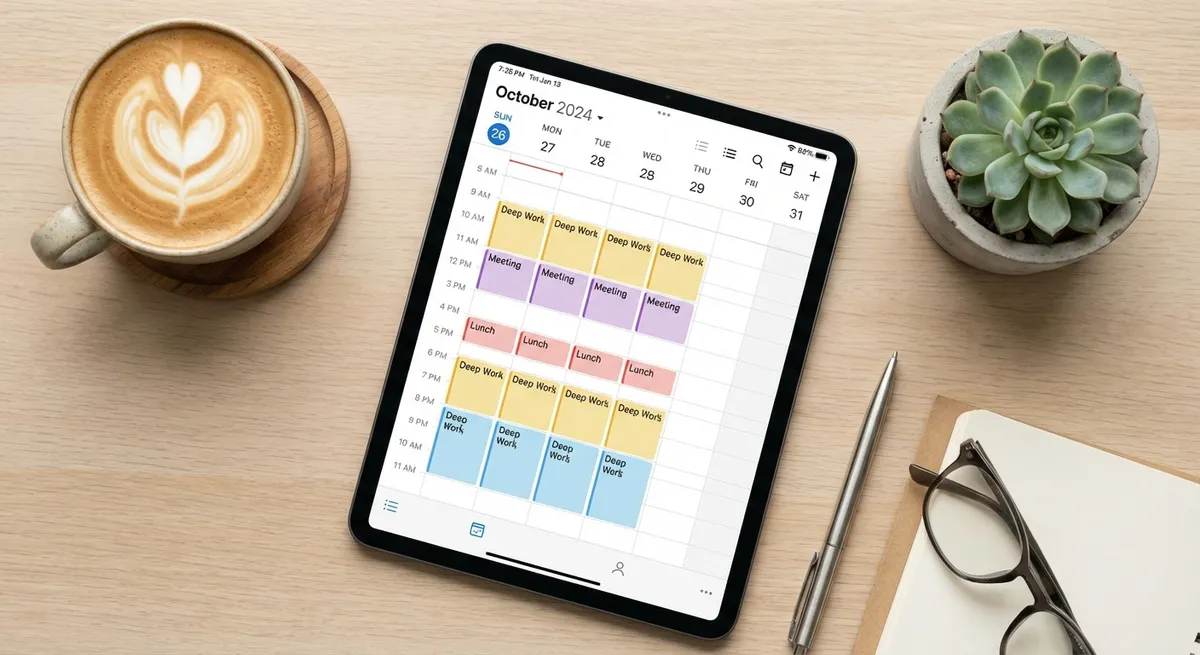
Your calendar is the most important productivity tool you own. It's not just a list of meetings — it's a visual representation of how you spend your life. Yet most people treat their calendar reactively, adding events only when forced to and never thinking strategically about their time.
This comprehensive guide covers everything from basic calendar hygiene to advanced automation, helping you build a system that keeps you organized, reduces stress, and ensures you never miss what matters.
Part 1: Calendar Management Foundations
The Single Source of Truth Principle
The number one rule of calendar management: everything goes in the calendar. Not some things. Everything. If it has a time component — a meeting, a deadline, a reminder, a gym session, a phone call — it belongs in your calendar.
This means your calendar becomes your single source of truth for how your time is allocated. No more checking three different apps, a sticky note on your monitor, and a string tied around your finger.
Choose Your Calendar Ecosystem
The three major calendar ecosystems in 2025 are:
- Google Calendar: Best for cross-platform users, Android users, and anyone who lives in Google Workspace. Free, fast, excellent sharing features.
- Apple Calendar: Best for Apple ecosystem users. Clean interface, tight integration with iOS/macOS, supports natural language input.
- Microsoft Outlook: Best for corporate environments and Microsoft 365 users. Powerful scheduling assistant and meeting room booking.
All three work with Photo2Calendar for quick event creation from photos and text. For a detailed comparison, see our Best Calendar Apps 2025 article.
Set Up Multiple Calendars
Don't throw everything into one calendar. Create separate calendars for different life areas:
- Work: Meetings, deadlines, reviews
- Personal: Social events, hobbies, appointments
- Family: Kids' activities, family dinners, school events
- Health: Gym sessions, doctor appointments, medication reminders
- Finance: Bill due dates, tax deadlines, subscription renewals
Color-code each calendar and display them all in one unified view. This gives you both organization and a complete picture of your commitments at a glance.
Try Photo2Calendar free on iOS or Android.
Part 2: Time-Blocking — The Power Technique
What Is Time-Blocking?
Time-blocking means assigning specific time periods to specific tasks or activities. Instead of keeping a to-do list and hoping you'll get to everything, you schedule when you'll do each task.
This technique is used by Bill Gates, Elon Musk, and Cal Newport (author of Deep Work). Here's why it works:
- Forces you to be realistic about how much time tasks take
- Eliminates decision fatigue ("what should I work on next?")
- Creates boundaries that protect deep work time
- Makes it visible when you're over-committed
How to Time-Block Effectively
- Start with fixed commitments: Meetings, appointments, school pickups — things that can't move
- Block deep work time: 2-4 hour blocks for your most important work, ideally in the morning
- Schedule admin time: Email, messages, and routine tasks in batches
- Add buffer blocks: 15-30 minute gaps between tasks for transitions and overflow
- Protect personal time: Exercise, family, relaxation — these go in the calendar too
Common Time-Blocking Mistakes
- Over-scheduling: Blocking every minute leaves no room for the unexpected. Keep 20-30% of your day unblocked.
- Ignoring energy levels: Schedule demanding work during your peak energy hours, routine tasks during low-energy periods.
- Not including breaks: Your brain needs downtime. Schedule 5-10 minute breaks between blocks.
Part 3: Calendar Automation
The Case for Automation
The biggest obstacle to good calendar management isn't strategy — it's data entry. You know you should add that conference schedule to your calendar. You know you should create an event for that concert ticket. But typing it all in is tedious, so you don't.
Calendar automation eliminates this barrier. Here are the key automation methods:
Photo-to-Calendar (Fastest Method)
Using Photo2Calendar, you can photograph any event source and have it in your calendar in seconds:
- Snap a photo of a flyer, poster, ticket, or schedule
- AI extracts event details automatically
- Review and save to your calendar
Learn the full process in our step-by-step event scanning guide or our photo conversion guide.
Email-to-Calendar
Many calendar apps can automatically create events from email confirmations (flights, hotels, restaurant reservations). Google Calendar does this automatically for Gmail users. For other email providers, you can copy the text and paste it into Photo2Calendar.
Voice-to-Calendar
Dictate events while driving, cooking, or exercising. Photo2Calendar's voice input lets you say something like "Dentist appointment next Tuesday at 2pm at Dr. Smith's office" and creates the event automatically. See our voice-to-calendar guide for details.
Recurring Events + Templates
Set up recurring events for regular commitments (weekly team meeting, monthly book club, daily exercise). This is one-time setup that saves you from creating the same events over and over.
Part 4: Advanced Strategies
The Weekly Review
Spend 15-20 minutes every Sunday evening reviewing your upcoming week:
- Look at every event on your calendar for the coming week
- Identify conflicts or over-booked days
- Add any events you've been meaning to schedule
- Prepare for your three most important tasks
- Check your photo gallery for any event photos you haven't processed yet
Strategic Use of Calendar Reminders
Don't use the default reminder for everything. Customize based on event type:
- Local meetings: 15-minute reminder
- Events requiring travel: 1-hour reminder + travel time estimate
- All-day events (deadlines): 1-day + 1-hour reminders
- Events requiring preparation: 24-hour reminder for prep, 1-hour for the event
Calendar Sharing & Family Coordination
If you have a family, shared calendars are essential. Create a shared "Family" calendar that all members can view and edit. This prevents double-booking — you can see at a glance when your partner has a meeting or your kids have soccer practice.
When you scan a school schedule with Photo2Calendar, save those events to the shared family calendar so everyone stays informed. See our school schedules use case for practical tips.
Part 5: Calendar Tools & Apps
Essential Calendar Stack for 2025
| Category | Tool | Purpose |
|---|---|---|
| Core Calendar | Google / Apple / Outlook | Main event storage & display |
| Quick Entry | Photo2Calendar | Photo/text/voice to calendar |
| Scheduling | Calendly / Cal.com | Let others book your time |
| Task Integration | Todoist / Things 3 | Connect tasks to time blocks |
For a detailed comparison of calendar apps, check our Best Calendar Apps 2025 guide. And for Google-specific tips, see our Google Calendar Tips & Tricks article.
Part 6: Putting It All Together
Your Calendar Management Checklist
- ☐ Choose your primary calendar app
- ☐ Set up 3-5 color-coded calendars for life areas
- ☐ Install Photo2Calendar for quick event entry
- ☐ Set up time-blocks for your typical week
- ☐ Create recurring events for regular commitments
- ☐ Schedule a weekly review (Sunday evening)
- ☐ Customize reminder settings by event type
- ☐ Share calendars with family/team members
- ☐ Process your camera roll for unscheduled events
Get Started Today
The best calendar management system is one you actually use. Start small: choose one strategy from this guide and implement it today. Add more techniques as each becomes a habit.
And for the quickest win, download Photo2Calendar on iOS or Android. It eliminates the biggest friction point in calendar management — getting events into your calendar in the first place.