How to Scan PDF Tickets & Confirmations to Your Calendar
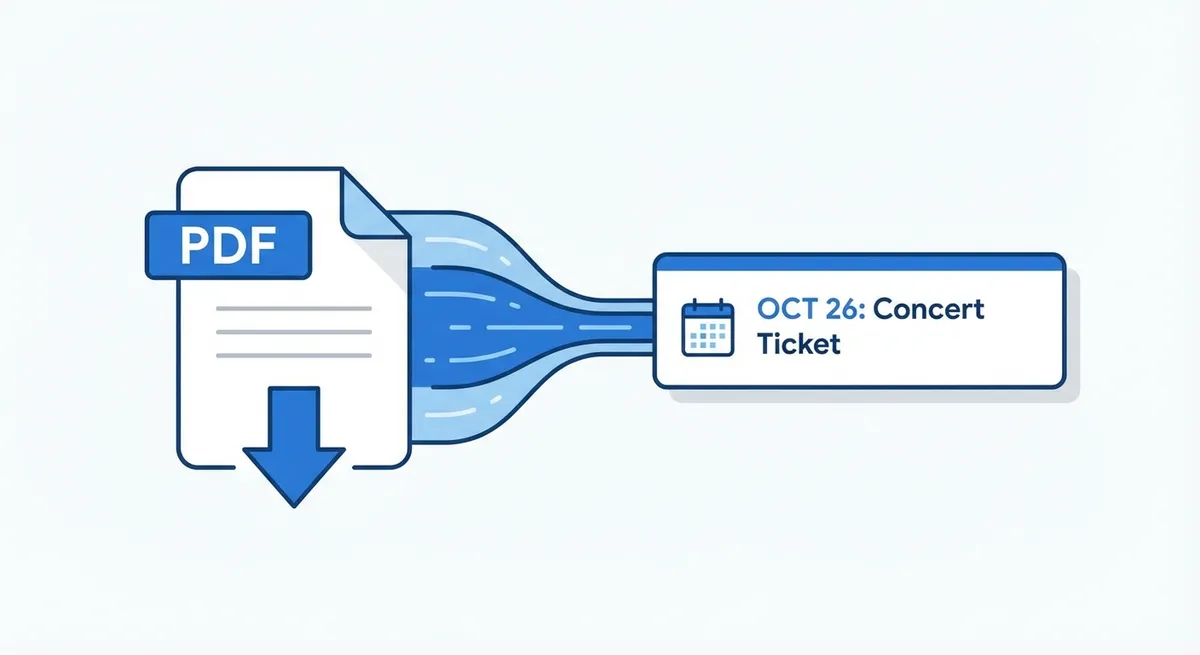
PDF is the universal format for tickets and confirmations. Concert tickets from Ticketmaster, flight confirmations from airlines, hotel bookings from Booking.com, event registrations from Eventbrite — they all arrive as PDF files. Your downloads folder probably has dozens of them right now.
Yet getting the information from those PDFs into your calendar still requires opening each one, reading the details, and manually typing them into a calendar event. Until now. Photo2Calendar reads PDFs directly and creates calendar events from their contents.
Why PDF-to-Calendar Matters
Consider how many PDFs with event dates you receive:
- Travel: Flight bookings, hotel confirmations, car rental vouchers
- Entertainment: Concert tickets, theater tickets, sports tickets
- Professional: Conference registrations, webinar confirmations
- Healthcare: Appointment confirmations, test results with follow-up dates
- Education: Course schedules, exam timetables, orientation packets
- Legal/Finance: Closing dates, filing deadlines, payment schedules
Each one contains a date and time that belongs in your calendar. The gap between "received the PDF" and "added to calendar" is where events get lost.
Try Photo2Calendar free on iOS or Android.
How to Import PDFs to Your Calendar
Method 1: Share Sheet (Fastest)
The quickest method for PDFs already on your phone:
- Open the PDF in any app (Mail, Files, browser)
- Tap the Share button
- Select Photo2Calendar from the share sheet
- The AI reads the PDF and extracts event details
- Review and save to calendar
Method 2: Import from Files
- Open Photo2Calendar
- Tap the import/gallery button
- Navigate to your PDF file
- Select the file — AI processes it immediately
- Review and save
Method 3: Screenshot Method
If the PDF import isn't working or you only need one page:
- Open the PDF and navigate to the page with event details
- Take a screenshot
- Import the screenshot into Photo2Calendar
- The AI reads the screenshot just like any other image
PDF Types and What Gets Extracted
Concert & Event Tickets
From a typical Ticketmaster or Eventbrite PDF, Photo2Calendar extracts:
- Event name / artist
- Date and time (doors open + show start)
- Venue name and address
- Section, row, seat (if applicable)
- Notes: age restrictions, prohibited items (when visible)
For more concert-specific details, see our concert ticket scanning guide.
Flight Confirmations
Airlines typically include in their PDF confirmations:
- Flight number and route
- Departure date, time, and terminal
- Arrival date, time, and terminal
- Booking reference
Photo2Calendar creates separate events for outbound and return flights, with all details in the event notes. For full travel planning, see our travel itineraries guide.
Hotel Bookings
- Hotel name and address
- Check-in date and time
- Check-out date and time
- Confirmation number
Multi-Event Itineraries
Travel itinerary PDFs (from travel agents or booking platforms) often contain multiple events: flights, hotels, tours, transfers. Photo2Calendar reads the entire document and creates separate events for each item on the itinerary.
Handling Complex PDFs
Multi-Page Documents
Photo2Calendar reads all pages. A 5-page conference agenda creates events from all sessions across all pages.
Image-Based PDFs
Some PDFs are scanned images rather than text-based documents. Photo2Calendar applies OCR to image-based PDFs, reading the text from the images just as it would from photos.
Dense PDFs with Mixed Content
For PDFs with lots of non-event content (terms and conditions, marketing text), the AI focuses on extracting date/time patterns and their associated context. If you get too many events from a dense PDF, simply delete the irrelevant ones.
The PDF Backlog Clean-Up
Here's a productive 15-minute exercise: go through your email downloads from the last 3 months and find every PDF with an upcoming event. Import each one into Photo2Calendar. You'll likely discover events you forgot about.
- Open your email and search for "confirmation" or "ticket" with PDF attachments
- Download each relevant PDF
- Import into Photo2Calendar one by one
- Review and save each event
PDF + Photo + Voice + Text: Complete Coverage
PDF import is part of Photo2Calendar's multi-input approach. Combined with photo scanning, voice input, and text paste, you have every input method covered:
- Photo: Posters, flyers, cards, whiteboards
- PDF: Tickets, confirmations, itineraries
- Text: Emails, messages, web content
- Voice: Phone calls, thoughts, quick capture
- Handwriting: Notes, sticky notes, forms (see guide)
Get Started with PDF Import
Your downloads folder is a treasure trove of uncalendared events. Download Photo2Calendar free on iOS or Android and import your first PDF ticket today.